Connect to local MCP servers
Learn how to extend Claude Desktop (and similar hosts) with local MCP servers for filesystem access and other integrations.
Adapted from Connect to local MCP servers. Concepts apply to Cursor, VS Code and other MCP-compatible clients with different config paths.
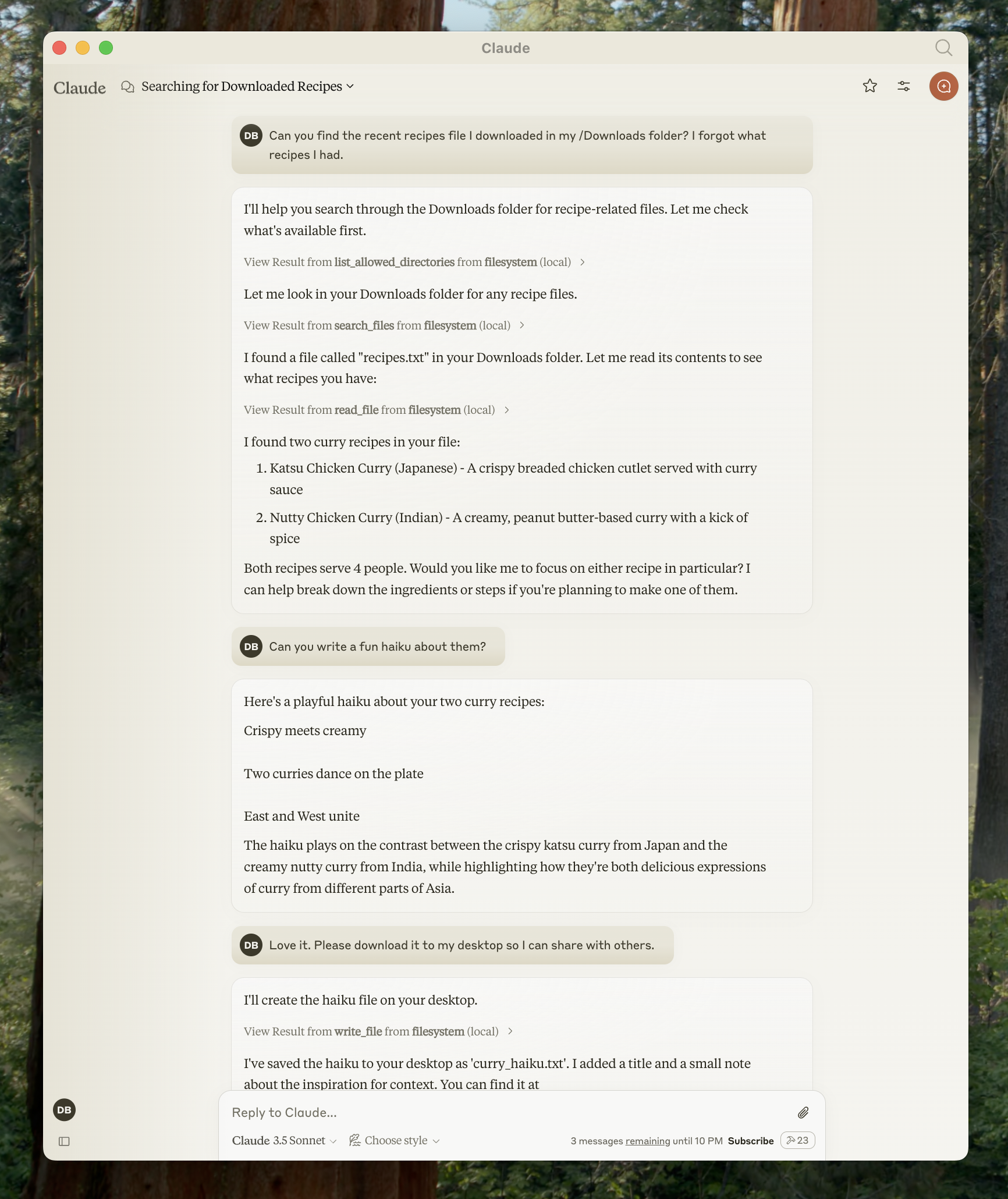
Filesystem server connected in a desktop host. Source: modelcontextprotocol/docs.
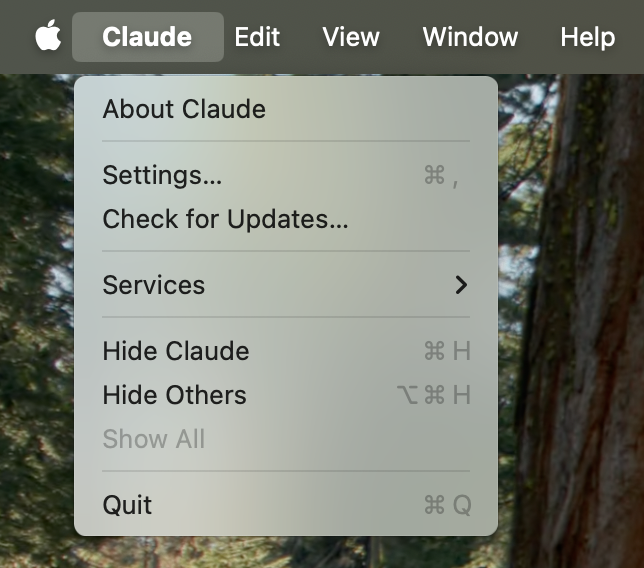
Source: modelcontextprotocol/docs (quickstart-menu.png).
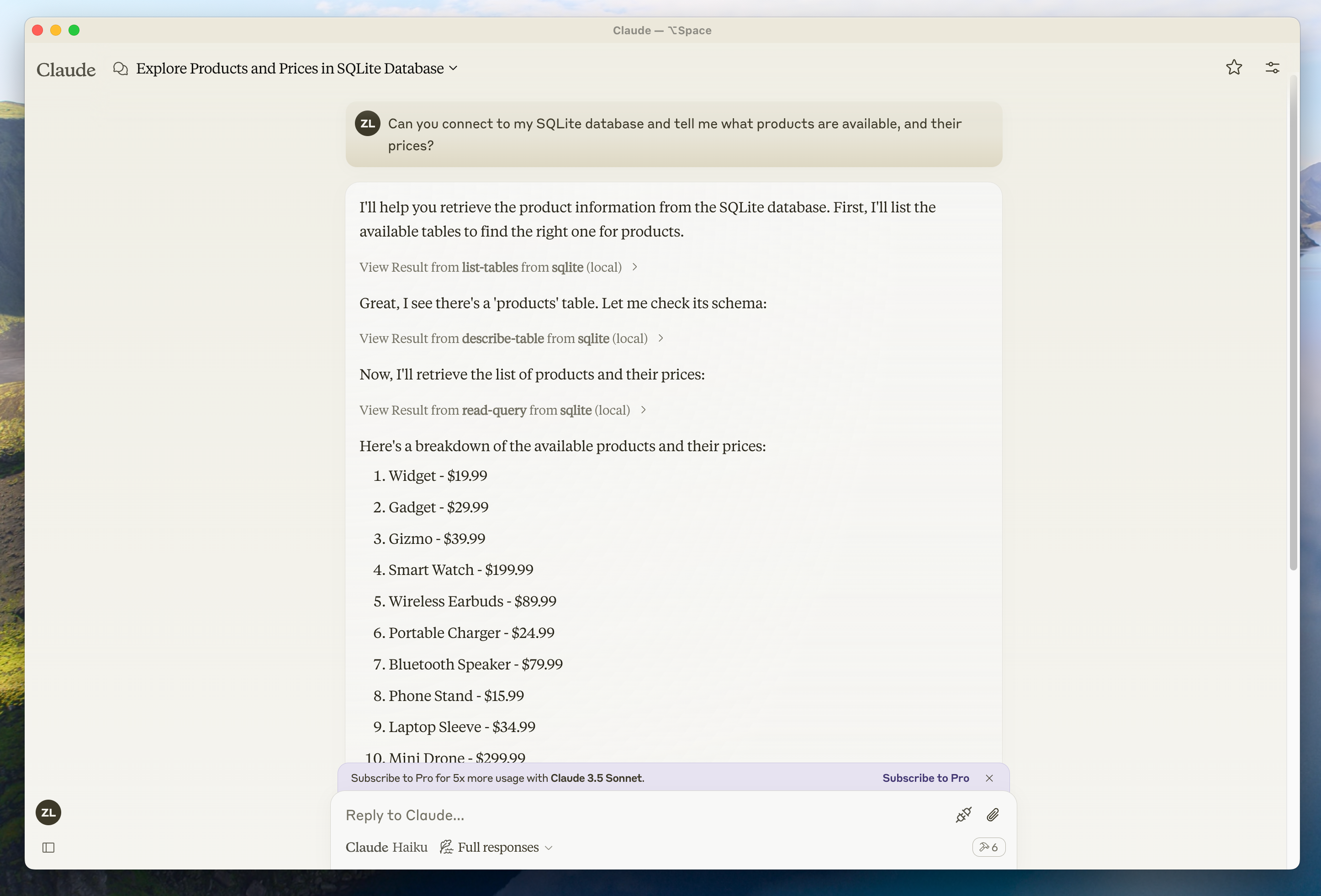
Source: modelcontextprotocol/docs (quickstart-screenshot.png).
Prerequisites
- An MCP host (for example Claude Desktop)
- Node.js LTS (for many npm-based servers) and/or uv for Python servers
- Absolute paths to directories the server may access
Example: filesystem server (Claude Desktop)
Config locations:
- macOS:
~/Library/Application Support/Claude/claude_desktop_config.json - Windows:
%APPDATA%\Claude\claude_desktop_config.json
{
  "mcpServers": {
    "filesystem": {
      "command": "npx",
      "args": [
        "-y",
        "@modelcontextprotocol/server-filesystem",
        "/Users/username/Desktop",
        "/Users/username/Downloads"
      ]
    }
  }
}
Replace username and directory paths. On Windows use escaped Windows paths under C:\\Users\\....
Restart the host completely after saving.
What the filesystem server can do
- Read file contents and directory structures
- Create, move and rename files (with approval)
- Search by name or content

Connector affordance. Source: modelcontextprotocol/docs.
Using tools safely
Before each file operation, the host should request approval. Review carefully; deny when unsure.
Try prompts such as:
- “Write a poem and save it to my desktop”
- “What work-related files are in Downloads?”
- “Organise desktop images into an Images folder”
Troubleshooting
| Symptom | Checks |
|---|---|
| Server does not appear | Restart host; validate JSON syntax; use absolute paths |
| Connection fails | Run the command manually in a terminal; inspect host MCP logs |
| Tools fail at runtime | Rebuild/reinstall package; check mcp-server-*.log stderr files |
${APPDATA} path errors on Windows | Expand and set env.APPDATA explicitly in config |
Logs (Claude Desktop):
- macOS:
~/Library/Logs/Claude(mcp.log,mcp-server-*.log) - Windows:
%APPDATA%\Claude\logs
tail -n 20 -f ~/Library/Logs/Claude/mcp*.log
For deeper techniques see Debugging.
Negative cases
- Relative paths in config → often fail; use absolute paths.
- Granting
$HOMEwholesale → excessive blast radius. - Assuming approval is optional → insecure; keep human confirmation for writes.
- Mixing secrets into
args→ preferenvblocks.
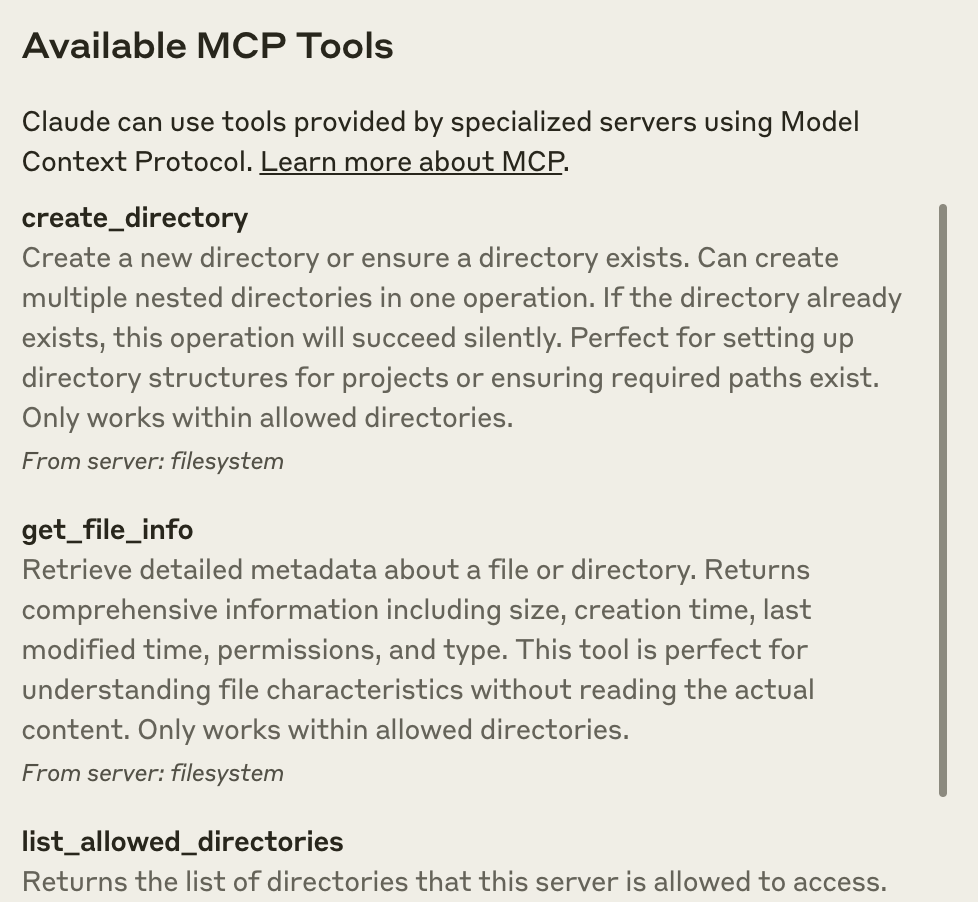
Verify tools appear after reconnect. Source: modelcontextprotocol/docs.
Discussion
Comments
Share feedback or questions about this page. No account required.
Loading comments…